How do I edit my profile?
Last updated: October 10, 2026
Your profile is how our recruiters find you, so a little time here pays off. Everything is under Profile in the left menu of the app.
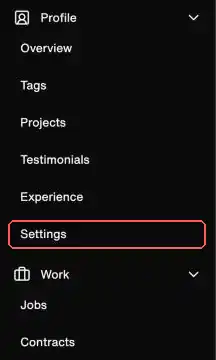
Where each part of your profile lives
- Overview: photo, name, location, tagline, bio, and links. app.gofractional.com/profile
- Tags: your skills and categories. app.gofractional.com/profile/skills
- Projects: client projects, case studies, talks, and write-ups. app.gofractional.com/profile/work
- Testimonials: add existing praise or request new testimonials. app.gofractional.com/profile/testimonials
- Experience: companies you've worked at and your education. app.gofractional.com/profile/experience
- Settings: visibility, weekly availability, minimum hourly rate, and resume. app.gofractional.com/settings
Editing your Overview
- Sign in at app.gofractional.com.
- Open Profile, then Overview.
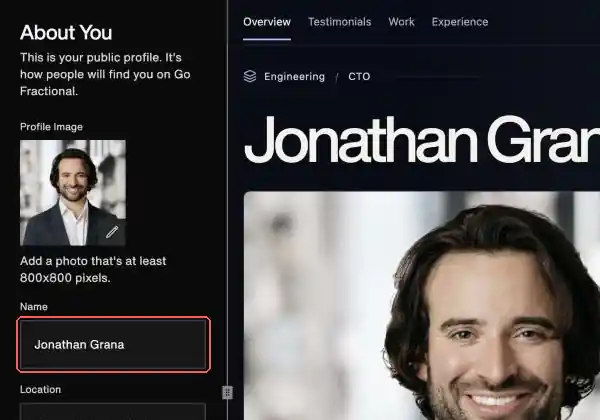
- Edit any field in the About You panel on the left. The live preview on the right shows how your profile will look.
- There is no Save button on this page. Your changes are saved as you make them.
Projects and Experience
On Projects, click Add Work to add a new entry, or use Edit on an existing one. On Experience, click Add experience, or Edit next to a role.
Settings are saved differently
The Settings page (visibility, availability, and rate) has a Save changes button at the bottom. Changes there are not saved until you click it.
Seeing the result
Click View profile in the top right to open your public profile. Public pages are cached, so a recent edit can take a few minutes to appear. If it still isn't showing, see My public profile shows outdated or incorrect information.
Tip: The most useful thing you can add is more projects and case studies with concrete, measurable outcomes. Each one shows a different kind of work you've delivered.